





Within one request, you can download multiple products from the same dataset — with no limit to the number of products. However, you can't download various products from different datasets within one request.
Examples and tutorials
Options
Equity options: Introduction
Options on futures: Introduction
All options with a given underlying
Join options with underlying prices
US equity options volume by venue
Resample US equity options NBBO
Estimate implied volatility
Get symbols for 0DTE options
Daily statistics for equity options
Get end of day option spreads
Historical data
Programmatic batch downloads
Best bid, best offer, and midprice
Custom OHLCV bars from trades
Join schemas on instrument ID
Plot a candlestick chart
Calculate VWAP and RSI
End-of-day pricing and portfolio valuation
Benchmark portfolio performance
Market halts, volatility interrupts, and price bands
Resample OHLCV from 1-minute to 5-minute
Convert DBN to other encoding formats
Request a large number of symbols
Algorithmic trading
A high-frequency liquidity-taking strategy
Build prediction models with machine learning
Execution slippage and markouts
Matching engine latencies
Using messaging rates as a proxy for implied volatility
Mean reversion and portfolio optimization
Pairs trading based on cointegration
Build a real-time stock screener
Core concepts
Venues and datasets
Blue Ocean ATS MEMOIR Depth
Cboe BYX Depth
Cboe BZX Depth
Cboe EDGA Depth
Cboe EDGX Depth
CFE
Databento Core Indices - CGIF
CME Globex MDP 3.0
Databento US Equities Mini
Databento US Equities Summary
Eurex
European Energy Exchange
ICE Endex
ICE Europe Commodities
ICE Europe Financials
ICE Futures US
IEX TOPS
MEMX MEMOIR Depth
MIAX Pearl Depth of Market
Nasdaq Basic with NLS Plus
Nasdaq TotalView-ITCH
Nasdaq Texas TotalView-ITCH
Nasdaq PSX TotalView-ITCH
NYSE Integrated
NYSE American Integrated
NYSE Arca Integrated
NYSE National Trades and BBO
NYSE Texas Integrated
OPRA
Adjustment factors
Corporate actions
Security master
API Reference
Resources
Release notes
C++
0.68.1 - 2026-09-30
0.68.0 - 2026-09-18
0.67.0 - 2026-09-01
0.66.0 - 2026-08-25
0.65.0 - 2026-08-18
0.64.0 - 2026-08-11
0.63.0 - 2026-08-04
0.62.1 - 2026-07-28
0.62.0 - 2026-07-14
0.61.0 - 2026-07-07
0.60.0 - 2026-06-16
0.59.0 - 2026-06-02
0.58.0 - 2026-05-26
0.57.0 - 2026-05-12
0.56.0 - 2026-05-05
0.55.0 - 2026-04-28
0.54.0 - 2026-04-21
0.53.0 - 2026-04-08
0.52.0 - 2026-03-31
0.51.0 - 2026-03-17
0.50.0 - 2026-03-03
0.49.0 - 2026-02-24
0.48.0 - 2026-02-18
0.47.0 - 2026-02-04
0.46.1 - 2026-01-27
0.46.0 - 2026-01-20
0.45.0 - 2025-12-10
0.44.0 - 2025-11-18
0.43.0 - 2025-10-22
0.42.0 - 2025-08-19
0.41.0 - 2025-08-12
0.40.0 - 2025-07-29
0.39.1 - 2025-07-22
0.39.0 - 2025-07-15
0.38.2 - 2025-07-01
0.38.1 - 2025-06-25
0.38.0 - 2025-06-10
0.37.1 - 2025-06-03
0.37.0 - 2025-06-03
0.36.0 - 2025-05-27
0.35.1 - 2025-05-20
0.35.0 - 2025-05-13
0.34.2 - 2025-05-06
0.34.1 - 2025-04-29
0.34.0 - 2025-04-22
0.33.0 - 2025-04-15
0.32.1 - 2025-04-07
0.32.0 - 2025-04-02
0.31.0 - 2025-03-18
0.30.0 - 2025-02-11
0.29.0 - 2025-02-04
0.28.0 - 2025-01-21
0.27.0 - 2025-01-07
0.26.0 - 2024-12-17
0.25.0 - 2024-11-12
0.24.0 - 2024-10-22
0.23.0 - 2024-09-25
0.22.0 - 2024-08-27
0.21.0 - 2024-07-30
0.20.1 - 2024-07-16
0.20.0 - 2024-07-09
0.19.1 - 2024-06-25
0.19.0 - 2024-06-04
0.18.1 - 2024-05-22
0.18.0 - 2024-05-14
0.17.1 - 2024-04-08
0.17.0 - 2024-04-01
0.16.0 - 2024-03-01
0.15.0 - 2024-01-16
0.14.1 - 2023-12-18
0.14.0 - 2023-11-23
0.13.1 - 2023-10-23
0.13.0 - 2023-09-21
0.12.0 - 2023-08-24
0.11.0 - 2023-08-10
0.10.0 - 2023-07-20
0.9.1 - 2023-07-11
0.9.0 - 2023-06-13
0.8.0 - 2023-05-16
0.7.0 - 2023-04-28
0.6.1 - 2023-03-28
0.6.0 - 2023-03-24
0.5.0 - 2023-03-13
0.4.0 - 2023-03-02
0.3.0 - 2023-01-06
0.2.0 - 2022-12-01
0.1.0 - 2022-11-07
Python
0.87.0 - 2026-09-22
0.86.0 - 2026-09-01
0.85.0 - 2026-08-25
0.84.0 - 2026-08-18
0.83.0 - 2026-08-04
0.82.0 - 2026-07-21
0.81.0 - 2026-07-07
0.80.0 - 2026-06-16
0.79.0 - 2026-06-02
0.78.0 - 2026-05-12
0.77.0 - 2026-04-28
0.76.0 - 2026-04-21
0.75.0 - 2026-04-07
0.74.1 - 2026-03-31
0.74.0 - 2026-03-24
0.73.0 - 2026-03-10
0.72.0 - 2026-02-26
0.71.0 - 2026-02-17
0.70.0 - 2026-01-27
0.69.0 - 2026-01-13
0.68.2 - 2026-01-06
0.68.1 - 2025-12-16
0.68.0 - 2025-12-09
0.67.0 - 2025-12-02
0.66.0 - 2025-11-18
0.65.0 - 2025-11-11
0.64.0 - 2025-09-30
0.63.0 - 2025-09-02
0.62.0 - 2025-08-19
0.61.0 - 2025-08-12
0.60.0 - 2025-08-05
0.59.0 - 2025-07-15
0.58.0 - 2025-07-08
0.57.1 - 2025-06-17
0.57.0 - 2025-06-10
0.56.0 - 2025-06-03
0.55.1 - 2025-06-02
0.55.0 - 2025-05-29
0.54.0 - 2025-05-13
0.53.0 - 2025-04-29
0.52.0 - 2025-04-15
0.51.0 - 2025-04-08
0.50.0 - 2025-03-18
0.49.0 - 2025-03-04
0.48.0 - 2025-01-21
0.47.0 - 2024-12-17
0.46.0 - 2024-12-10
0.45.0 - 2024-11-12
0.44.1 - 2024-10-29
0.44.0 - 2024-10-22
0.43.1 - 2024-10-15
0.43.0 - 2024-10-09
0.42.0 - 2024-09-23
0.41.0 - 2024-09-03
0.40.0 - 2024-08-27
0.39.3 - 2024-08-20
0.39.2 - 2024-08-13
0.39.1 - 2024-08-13
0.39.0 - 2024-07-30
0.38.0 - 2024-07-23
0.37.0 - 2024-07-09
0.36.3 - 2024-07-02
0.36.2 - 2024-06-25
0.36.1 - 2024-06-18
0.36.0 - 2024-06-11
0.35.0 - 2024-06-04
0.34.1 - 2024-05-21
0.34.0 - 2024-05-14
0.33.0 - 2024-04-16
0.32.0 - 2024-04-04
0.31.1 - 2024-03-20
0.31.0 - 2024-03-05
0.30.0 - 2024-02-22
0.29.0 - 2024-02-13
0.28.0 - 2024-02-01
0.27.0 - 2024-01-23
0.26.0 - 2024-01-16
0.25.0 - 2024-01-09
0.24.1 - 2023-12-15
0.24.0 - 2023-11-23
0.23.1 - 2023-11-10
0.23.0 - 2023-10-26
0.22.1 - 2023-10-24
0.22.0 - 2023-10-23
0.21.0 - 2023-10-11
0.20.0 - 2023-09-21
0.19.1 - 2023-09-08
0.19.0 - 2023-08-25
0.18.1 - 2023-08-16
0.18.0 - 2023-08-14
0.17.0 - 2023-08-10
0.16.1 - 2023-08-03
0.16.0 - 2023-07-25
0.15.2 - 2023-07-19
0.15.1 - 2023-07-06
0.15.0 - 2023-07-05
0.14.1 - 2023-06-16
0.14.0 - 2023-06-14
0.13.0 - 2023-06-02
0.12.0 - 2023-05-01
0.11.0 - 2023-04-13
0.10.0 - 2023-04-07
0.9.0 - 2023-03-10
0.8.1 - 2023-03-05
0.8.0 - 2023-03-03
0.7.0 - 2023-01-10
0.6.0 - 2022-12-02
0.5.0 - 2022-11-07
0.4.0 - 2022-09-14
0.3.0 - 2022-08-30
HTTP API
0.36.0 - TBD
0.35.0 - 2025-08-19
0.34.1 - 2025-06-17
0.34.0 - 2025-06-09
0.33.0 - 2024-12-10
0.32.0 - 2024-11-26
0.31.0 - 2024-11-12
0.30.0 - 2024-09-24
0.29.0 - 2024-09-03
0.28.0 - 2024-06-25
0.27.0 - 2024-06-04
0.26.0 - 2024-05-14
0.25.0 - 2024-03-26
0.24.0 - 2024-03-06
0.23.0 - 2024-02-15
0.22.0 - 2024-02-06
0.21.0 - 2024-01-30
0.20.0 - 2024-01-18
0.19.0 - 2023-10-17
0.18.0 - 2023-10-11
0.17.0 - 2023-10-04
0.16.0 - 2023-09-26
0.15.0 - 2023-09-19
0.14.0 - 2023-08-29
0.13.0 - 2023-08-23
0.12.0 - 2023-08-10
0.11.0 - 2023-07-25
0.10.0 - 2023-07-06
0.9.0 - 2023-06-01
0.8.0 - 2023-05-01
0.7.0 - 2023-04-07
0.6.0 - 2023-03-10
0.5.0 - 2023-03-03
0.4.0 - 2022-12-02
0.3.0 - 2022-08-30
0.2.0 - 2021-12-10
0.1.0 - 2021-08-30
Raw API
0.9.4 - Upcoming
0.9.3 - 2026-08-01
0.9.2 - 2026-07-18
0.9.1 - 2026-06-27
0.9.0 - 2026-04-26
0.7.5 - 2026-02-28
0.7.4 - 2026-02-15
0.7.3 - 2026-02-10
0.7.2 - 2025-12-14
0.7.1 - 2025-11-09
0.7.0 - 2025-10-26
0.6.4 - 2025-09-28
0.6.3 - 2025-09-07
0.6.2 - 2025-08-02
0.6.1 - 2025-06-29
0.6.0 - 2025-05-24
0.5.6 - 2025-04-06
0.5.5 - 2024-12-01
0.5.4 - 2024-10-02
0.5.3 - 2024-10-02
0.5.1 - 2024-07-24
2024-07-20
2024-06-25
0.5.0 - 2024-05-25
0.4.6 - 2024-04-13
0.4.5 - 2024-03-25
0.4.4 - 2024-03-23
0.4.3 - 2024-02-13
0.4.2 - 2024-01-06
0.4.0 - 2023-11-08
0.3.0 - 2023-10-20
0.2.0 - 2023-07-23
0.1.0 - 2023-05-01
Rust
0.63.0 - 2026-09-29
0.62.0 - 2026-09-21
0.61.0 - 2026-09-01
0.60.0 - 2026-08-25
0.59.0 - 2026-08-18
0.58.0 - 2026-08-11
0.57.0 - 2026-08-04
0.56.0 - 2026-07-28
0.55.0 - 2026-07-14
0.54.0 - 2026-07-07
0.53.0 - 2026-06-02
0.52.0 - 2026-05-26
0.51.0 - 2026-05-12
0.50.0 - 2026-05-05
0.49.0 - 2026-04-29
0.48.0 - 2026-04-21
0.47.0 - 2026-04-15
0.46.0 - 2026-04-07
0.45.0 - 2026-03-31
0.44.0 - 2026-03-17
0.43.0 - 2026-03-04
0.42.0 - 2026-02-24
0.41.0 - 2026-02-18
0.40.0 - 2026-01-27
0.39.0 - 2026-01-20
0.38.0 - 2025-12-16
0.37.0 - 2025-12-09
0.36.0 - 2025-11-19
0.35.0 - 2025-10-22
0.34.1 - 2025-09-30
0.34.0 - 2025-09-23
0.33.1 - 2025-08-26
0.33.0 - 2025-08-19
0.32.0 - 2025-08-12
0.31.0 - 2025-07-30
0.30.0 - 2025-07-22
0.29.0 - 2025-07-15
0.28.0 - 2025-07-01
0.27.1 - 2025-06-25
0.27.0 - 2025-06-10
0.26.2 - 2025-06-03
0.26.1 - 2025-05-30
0.26.0 - 2025-05-28
0.25.0 - 2025-05-13
0.24.0 - 2025-04-22
0.23.0 - 2025-04-15
0.22.0 - 2025-04-01
0.21.0 - 2025-03-18
0.20.0 - 2025-02-12
0.19.0 - 2025-01-21
0.18.0 - 2025-01-08
0.17.0 - 2024-12-17
0.16.0 - 2024-11-12
0.15.0 - 2024-10-22
0.14.1 - 2024-10-08
0.14.0 - 2024-10-01
0.13.0 - 2024-09-25
0.12.1 - 2024-08-27
0.12.0 - 2024-07-30
0.11.4 - 2024-07-16
0.11.3 - 2024-07-09
0.11.2 - 2024-06-25
0.11.1 - 2024-06-11
0.11.0 - 2024-06-04
0.10.0 - 2024-05-22
0.9.1 - 2024-05-15
0.9.0 - 2024-05-14
0.8.0 - 2024-04-01
0.7.1 - 2024-03-05
0.7.0 - 2024-03-01
0.6.0 - 2024-01-16
0.5.0 - 2023-11-23
0.4.2 - 2023-10-23
0.4.1 - 2023-10-06
0.4.0 - 2023-09-21
0.3.0 - 2023-09-13
0.2.1 - 2023-08-25
0.2.0 - 2023-08-10
0.1.0 - 2023-08-02
Data
2026-08-08
2026-07-19
2026-05-31
2026-05-09
2026-04-22
2026-04-15
2026-04-13
2026-04-08
2025-11-09
2025-11-04
2025-09-23
2025-08-26
2025-08-05
2025-07-25
2025-07-06
2025-07-01
2025-06-27
2025-06-17
2025-06-10
2025-05-20
2025-05-07
2025-04-05
2025-04-01
2025-03-13
2025-02-26
2025-02-01
2025-01-15
2024-12-14
2024-12-03
2024-12-02
2024-10-22
2024-10-24
2024-07-05
2024-06-25
2024-06-18
2024-05-07
2024-01-18
2023-11-17
2023-10-04
2023-08-29
2023-07-23
2023-05-01
2023-04-28
2023-03-07
Collapse all
 Batch download
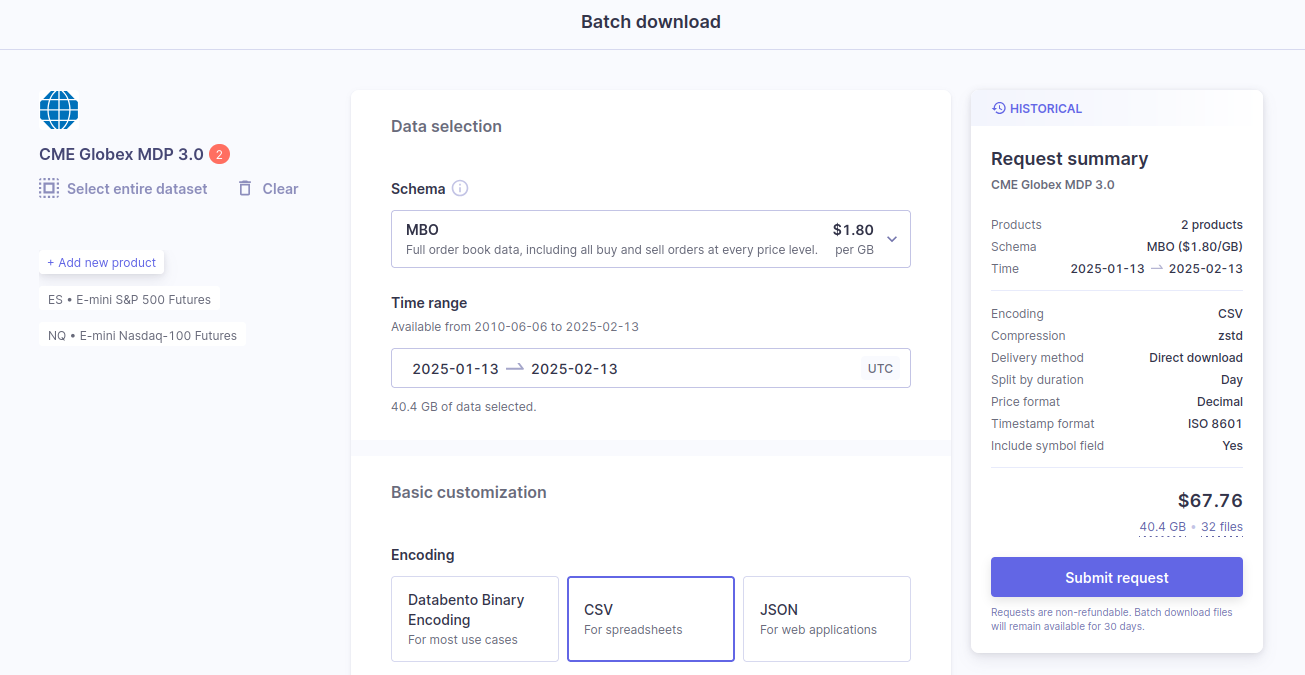
Overview
After you've selected a product from a dataset, you can customize and submit your download request for flat files. We support DBN, CSV, and JSON formats, allowing our data to be integrated with various platforms and database solutions.
Info
Data selection

- Schema. Specify the schema you want to receive your data in — MBO, MBP, TBBO, etc. You can read more about our supported schemas here. After you select a schema, we specify the usage rate ($/GB).
- Time range. You can specify your data time range. After you select a time range, we specify the data usage amount.
Basic customization
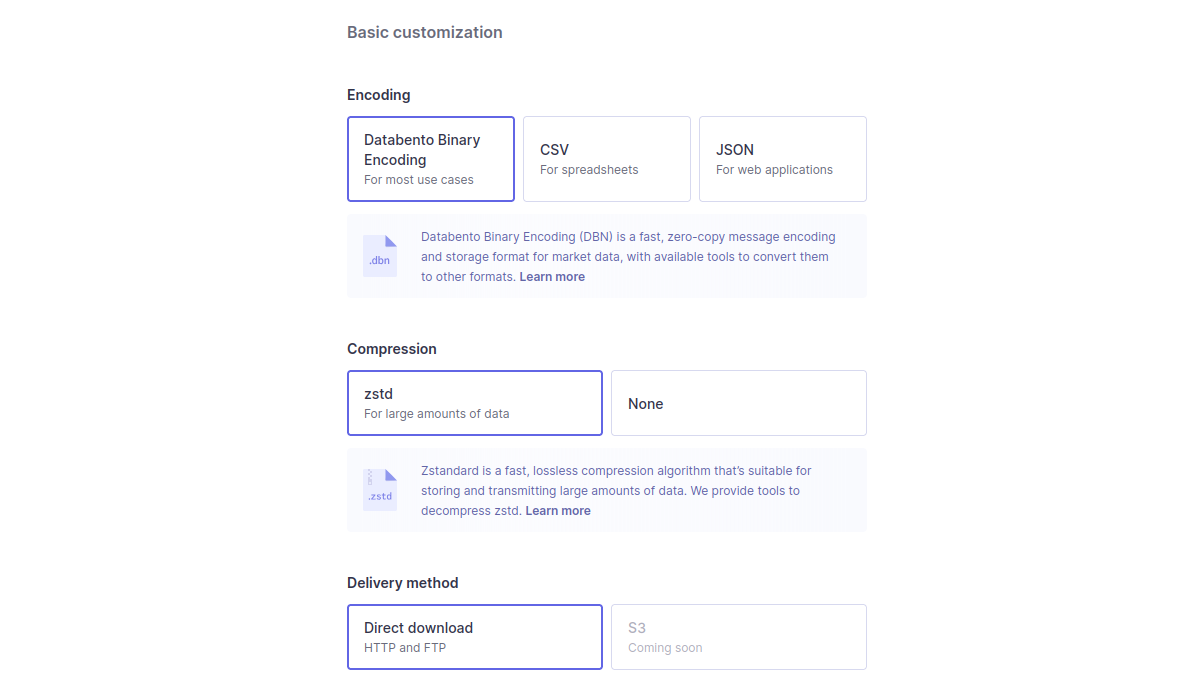
Choose your preferred encoding, compression, and delivery method for no additional charge.
- Encoding. DBN has the fastest transfer speed and smallest size. CSV works best for spreadsheets and JSON for web applications. Learn more about how to read DBN files here.
- Compression. Choose between zstd or no compression option. Learn more about how to decompress zstd files here.
- Delivery method. Direct download (HTTP or FTP) is currently the only option available, with S3 and disk coming soon.
Advanced customization
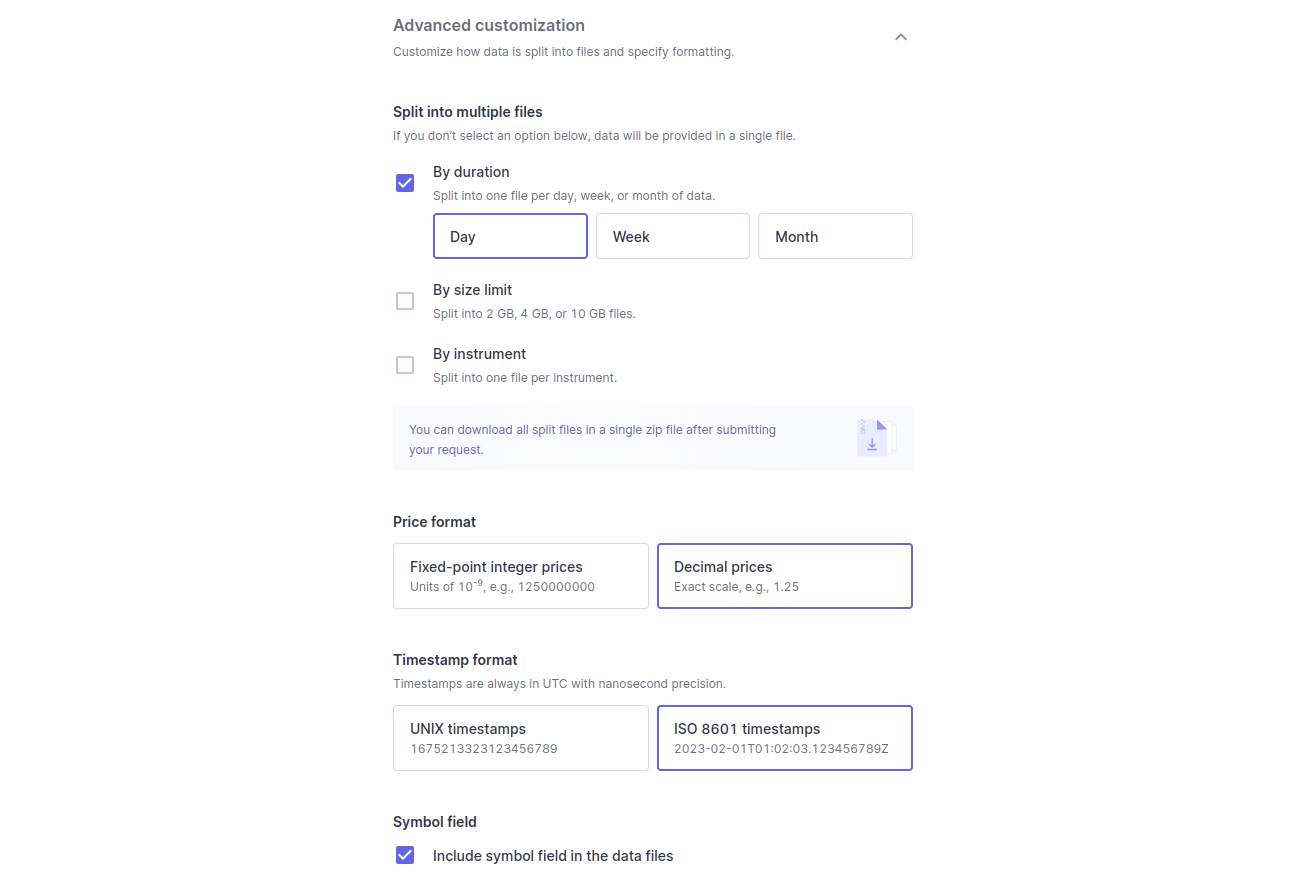
Split your data into different files based on the following:
- Duration. Split data into one file per day, week, or month.
- Size limit. Split files above a size limit of 2, 4, or 10GB.
- Instrument. Split files by instrument.
The following are additional customizations available for CSV and JSON encodings:
- Price format. Scale prices to decimal strings.
- Timestamp format. Format timestamps as ISO 8601 strings.
- Symbol field. Add a symbol field to the data.
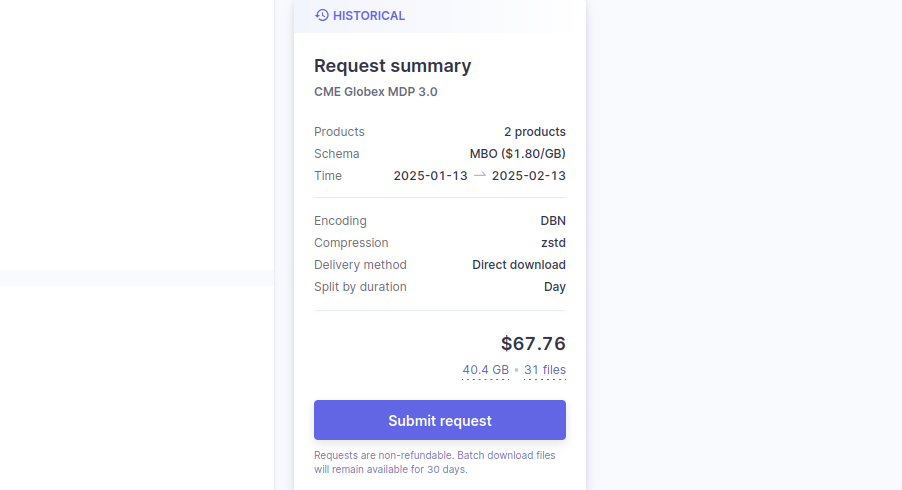
After you've customized your download request details, submit the request by clicking the Submit request button on the right side of the page.
We will queue and process your request, and the files will be ready for use on your Databento portal's Download center page. You can read more about accessing and managing downloads in our Download center documentation.